
Livestreaming failures: Common technical mistakes that kill your stream quality

Live streaming has become one of the most popular ways to share content, whether you're broadcasting gameplay, hosting webinars, or creating live entertainment. However, many streamers struggle with streaming quality issues that can drive viewers away and damage their channel's reputation.
Understanding and avoiding common technical mistakes is crucial for maintaining professional-grade broadcasts that keep your audience engaged. Here's a guide to understand what goes into avoiding blunders that could drive away potential viewers or make your livestream come across as lacking in quality or clarity.
Understanding the impact of poor stream quality
Before diving into specific mistakes, it's important to understand why stream quality matters. Viewers have countless options for content consumption, and they won't hesitate to leave a stream that's plagued by buffering, pixelation, or audio problems.

Many outlets have shared the fact that viewers will abandon a stream within the first 10 to 15 seconds if they encounter quality issues, making technical excellence a non-negotiable aspect of successful streaming. As a result, ensuring everything is working smoothly before going live is an essential aspect of the job; perhaps a checklist of sorts could help tick all these boxes.
With that out of the way, let's delve into the errors that content creators can make when going live on stream, starting with the wrong usage of the crucial OBS tool.
OBS mistakes that destroy stream quality
Open Broadcaster Software (OBS) is the most popular streaming tool, but it's also where many technical errors occur. These OBS mistakes can significantly impact your broadcast quality.
Incorrect bitrate settings
Bitrate determines how much data is transmitted per second and directly affects visual quality. Setting it too low results in pixelation and blurriness, especially during high-motion scenes. Setting it too high can cause buffering and dropped frames if your internet can't handle it.
Optimal bitrate guidelines:
1080p | 60fps
| 6,000 Kbps |
1080p | 30fps
| 4,500 Kbps |
720p | 60fps
| 4,500 Kbps |
| 720p | 30fps | 3,000 Kbps |
Always ensure your upload speed comfortably supports your chosen bitrate, with room to spare.
Wrong encoder selection
Choosing between x264 (CPU encoding) and NVENC/AMD (GPU encoding) is crucial. Using x264 on an underpowered CPU causes severe performance issues, while not utilizing available GPU encoding capabilities wastes resources.
Here are some encoder recommendations: use NVENC if you have an NVIDIA GTX 1650 or better. Get the AMD VCE/AMF for AMD graphics cards that are RX 5000 series or newer, and only use x264 if you have a powerful CPU (8+ cores) and want maximum quality. Lastly, set the encoder preset appropriately (faster presets for weaker hardware).
Improper resolution and FPS configuration
Many creators make the mistake of streaming at their monitor's native resolution without downscaling. Streaming at 1440p or 4K when most viewers watch at 1080p or lower wastes bandwidth and processing power.
For optimum resolution outcomes, set the output resolution to 1080p or 720p for most streams.
Use 30fps for slower-paced content (talk shows, tutorials) and 60fps for fast-action content (gaming, sports). Also, downscale using the Lanczos filter for the best quality.
Neglecting keyframe interval
The keyframe interval (also called GOP size) determines how often a complete frame is sent. Incorrect settings cause buffering issues and prevent viewers from joining your stream smoothly. The correct settings include setting the keyframe interval to two seconds, which translates to 60 keyframes at 30fps or 120 at 60fps. Additionally, remember to never use "auto" for streaming to platforms like Twitch or YouTube.
Ignoring hardware encoding settings
When using hardware encoders like NVENC, many streamers stick with default settings that don't optimize quality. Advanced settings can significantly improve visual fidelity.
NVENC optimization:
- Set the preset to "Quality" or "Max Quality"
- Enable "Look-ahead" and "Psycho Visual Tuning"
- Use "High" profile
- Set B-frames to 2
Bandwidth and internet connection mistakes

Insufficient upload speed
One of the most critical livestreaming quality issues stems from inadequate upload bandwidth. Many streamers focus on download speeds while overlooking that streaming requires substantial upload capacity. Your upload speed determines how much data you can send to streaming platforms in real-time.
There are some practices that streamers can follow to ensure a good upload speed before broadcasting live. Some of them include testing your upload speed using reliable speed test tools and aiming for at least 1.5 to 2 times your bitrate in upload speed as a buffer.
Influencers should also consider upgrading their internet plans if necessary, as certain factors come into play with respect to what speeds certain service providers can offer. Lastly, it will do you well to use wired Ethernet connections instead of Wi-Fi whenever possible, especially when livestreaming.
Wi-Fi instability
Relying on wireless connections is a common mistake that introduces latency, packet loss, and inconsistent performance. Wi-Fi signals can be interrupted by walls, other devices, and network congestion, all of which can lead to dropped frames and degraded stream quality.
For the best results, always use a wired Ethernet connection for streaming, and if Wi-Fi is unavoidable, position yourself close to the router. Moreover, utilise 5GHz bands instead of 2.4GHz for better performance, and minimise other network activity during streams.
Audio Configuration Errors
Incorrect audio bitrate
Audio quality is often overlooked, but poor audio is more likely to drive viewers away than minor video issues. Setting the audio bitrate too low results in muffled, compressed sound.
Audio settings:
- Use 160 Kbps for stereo audio (most common)
- Use 128 Kbps minimum
- Select 44.1 kHz or 48 kHz sample rate
- Never go below 96 Kbps
Improper microphone levels
Audio that's too quiet forces viewers to turn up their volume, while audio that's too loud causes distortion and clipping. Both are common streaming quality issues that are easily preventable.
There are a few audio level guidelines that streamers can follow, like keeping microphone levels peaking between -12dB and -6dB and using compression to even out volume variations. You can also apply noise suppression and noise gate filters and monitor audio levels constantly during live streams.
Desynchronized audio
Audio-video sync issues create a jarring viewing experience. This often occurs due to incorrect audio buffering settings or using incompatible audio devices. In terms of some sync solutions, influencers can use ASIO or WDM audio drivers and adjust audio sync offset in OBS if needed. You can also test the audio sync before going live and use consistent audio sample rates across all sources.
Hardware limitations and bottlenecks
CPU Overload
When your CPU usage reaches 100%, you'll experience dropped frames, stuttering, and potential crashes. This is one of the most common OBS mistakes among new streamers who try to do too much with insufficient hardware.
CPU management involves a lot of things, with some key points being to monitor CPU usage in the OBS stats panel and close unnecessary background applications. Streamers must also use GPU encoding instead of x264 if the CPU bandwidth is limited. They can also lower in-game graphics settings to reduce CPU load and consider hardware upgrades if consistently maxed out.
Insufficient RAM
Running out of memory causes system instability and can crash your stream. Modern streaming setups require substantial RAM, especially when running games, streaming software, and browser sources simultaneously.
Some recommendations are suggested to be followed for the best outcomes, like using a minimum of 16 GB for streaming, while 32 GB is recommended for serious streamers. You should also close memory-intensive applications during live-streams and monitor the RAM usage in Task Manager.
Storage speed issues
Using slow hard drives for recording or reading media files causes stuttering and frame drops. This is especially problematic when streaming and recording simultaneously.
Storage solutions:
- Use SSDs for OBS, games, and recording
- Avoid recording to the same drive as your operating system
- Ensure sufficient free space (at least 20% free)
- Use NVMe drives for best performance
Scene and source configuration problems
Too many browser sources
Browser sources are resource-intensive and can significantly impact performance. Each browser source runs a separate instance of Chromium, consuming CPU and RAM. For Browser source optimization, limit browser sources to essential elements only and set browser sources to refresh only when visible. Moreover, use static images instead of animated overlays when possible and unload browser sources when not in the scene.
Unoptimized media files
Using high-resolution or uncompressed media files for overlays, stingers, and alerts wastes resources and can cause playback issues. To ensure proper media optimization, compress video files before using them in OBS and use appropriate resolutions (no larger than the output resolution). You can also convert videos to MP4 with H.264 codec and optimize image file sizes.
Excessive filters and effects
While filters can enhance your stream, stacking too many creates processing overhead that leads to performance issues.
Filter management:
- Use only necessary filters
- Apply color correction to sources, not scenes
- Avoid redundant filters
- Test the performance impact of each filter
Platform-specific configuration errors

Ignoring platform requirements
Each streaming platform has specific technical requirements and recommendations. Ignoring these guidelines causes streaming quality issues and may even violate the terms of service.
Platform considerations:
| Twitch
| Maximum 6,000 Kbps bitrate, 1080p 60fps
|
| YouTube
| Supports up to 51,000 Kbps, 4K 60fps
|
| Facebook Gaming
| Recommended 4,000 Kbps, 1080p 30fps
|
A good tip is to always check the current platform guidelines.
Server selection problems
Connecting to distant or overloaded servers increases latency and the likelihood of dropped frames. For proper server optimization, run server tests in OBS or streaming software and select servers with the lowest latency. Also, it is crucial to have backup server options ready and monitor the connection quality during streams
Monitoring and troubleshooting failures
Not watching stream statistics
Many streamers ignore OBS statistics that provide crucial information about stream health. This leads to broadcasting quality issues without realizing it.
Key metrics to monitor:
- Dropped frames (should be under 0.5%)
- CPU and GPU usage
- Encoding lag
- Network status
- Bitrate stability
Failing to test before going live
Going live without testing is a recipe for disaster. Technical issues that could have been caught in testing become public embarrassments. Following a pre-stream checklist is crucial, and it can contain items like testing a stream on a secondary account or platform, verifying audio levels and quality, checking all scenes and transitions, confirming if webcam and overlays are working and conducting a test for five to ten minutes minimum.
Not having backup plans
Technical problems will eventually occur. Streamers without contingency plans face extended downtime and frustrated viewers. They must make sure to have alternative streaming software installed, keep backup internet connection options (mobile hotspot), prepare "technical difficulties" scenes and save multiple OBS profiles for different scenarios.
Color and visual quality mistakes
Incorrect color space and range
Mismatched color settings cause washed-out or overly saturated video. This is a subtle but important aspect of professional-looking streams.
Color settings:
- Use the NV12 color format for streaming
- Set color space to 709
- Use a partial (limited) color range
- Match settings across all sources
Poor lighting
While not strictly a technical setting, inadequate lighting forces cameras to use higher ISO, resulting in grainy, noisy video that's harder to encode efficiently. For lighting improvements, creators can use dedicated lighting (ring lights, softboxes), position lights to eliminate shadows, avoid backlighting and maintain consistent lighting conditions.
Advanced technical considerations
Process priority mismanagement
OBS and your game compete for system resources. Improper priority settings can cause either to suffer performance issues. For priority optimization, a few points can be followed, like setting OBS to "Above Normal" priority in Task Manager.
Streamers must also not set it to "High" or "Realtime," as it can cause system instability. They can consider using Process Lasso for automatic management and must ensure to balance game and livestreaming software priorities.
Outdated software and drivers
Running outdated versions of OBS, graphics drivers, or operating systems introduces bugs and compatibility issues that manifest as streaming quality issues.
Update maintenance:
- Keep OBS updated to the latest stable version
- Update graphics drivers regularly
- Install Windows updates
- Update plugins and extensions
- Test updates on test streams first
Improper multi-PC streaming setup
For streamers using dedicated streaming PCs, incorrect configuration between gaming and streaming computers causes quality problems.
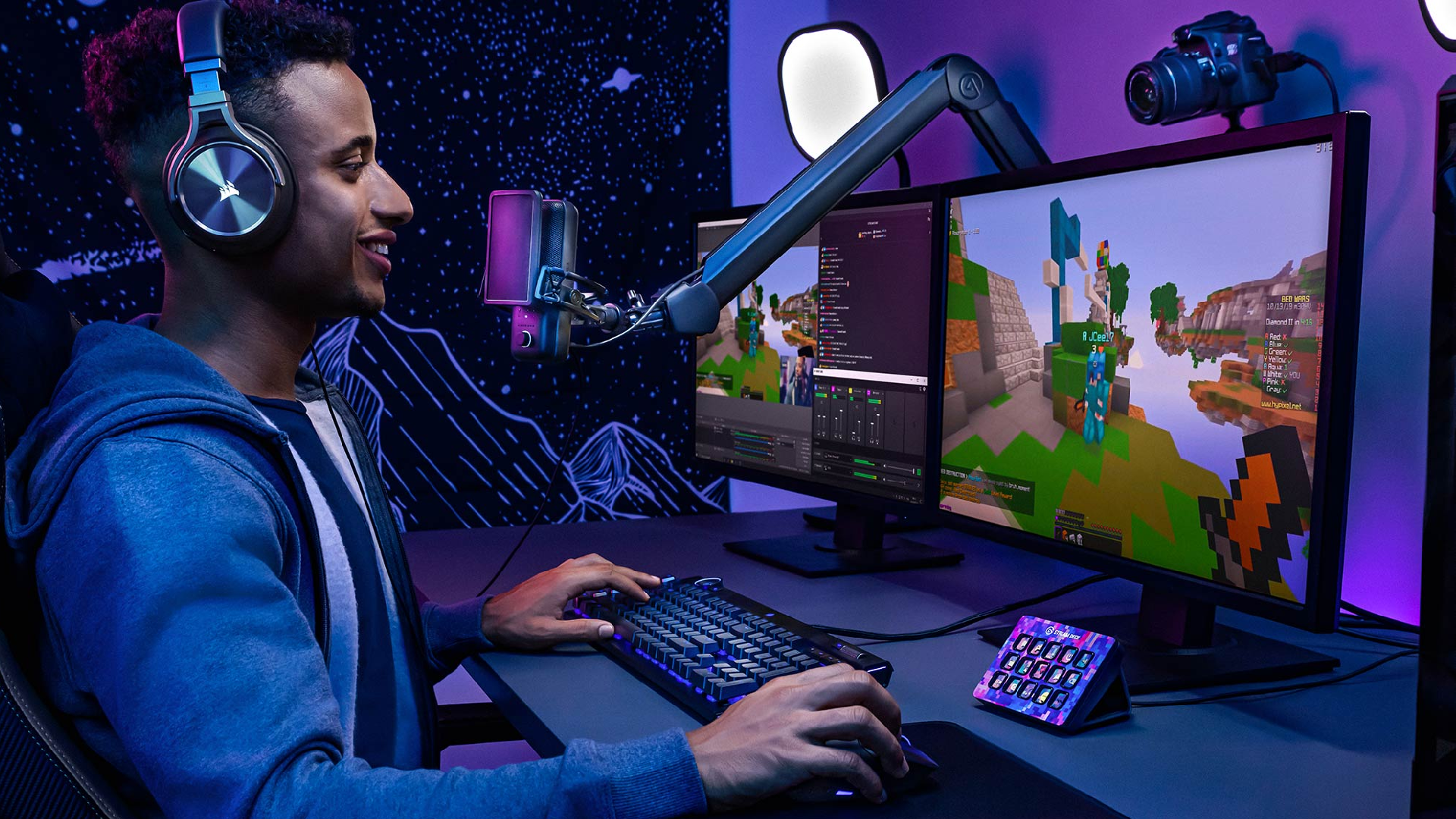
Multi-PC considerations:
- Use capture cards with sufficient bandwidth (4K60 Pro, HD60 S+)
- Match color spaces between PCs
- Use proper cables (HDMI 2.0 or DisplayPort)
- Configure audio routing correctly
- Sync settings between machines
Conclusion
Avoiding these common technical mistakes requires attention to detail, proper configuration, and ongoing monitoring. Streaming quality issues and OBS mistakes can be prevented through education, testing, and optimization. By addressing bandwidth limitations, properly configuring OBS settings, managing hardware resources, and monitoring stream health, you can deliver professional-quality broadcasts that keep viewers engaged and grow your channel.
Remember that streaming technology constantly evolves. Stay informed about new features, best practices, and platform requirements. Invest time in learning your tools, test thoroughly, and don't be afraid to experiment with settings to find what works best for your specific setup. Quality streaming is a combination of proper technical configuration and ongoing refinement — master both, and you'll stand out in an increasingly crowded streaming landscape.
The difference between a successful stream and one plagued by technical issues often comes down to these fundamental mistakes. Take the time to audit your setup, implement these recommendations, and commit to continuous improvement. Your viewers will notice the difference, and your channel will benefit from the professional quality that keeps audiences coming back.
Esports is a journey where winning is not as important as enjoying the game!
Subscribe to our newsletter.
Latest streaming statistics and analytics news in weekly format!
Subscribe